weareliferuiner

  • Home
  • TECH
    • APP
    • APP REVIEW
    • GADGETS
    • IOS
    • MAC
    • SMARTPHONE
  • COMMUNICATION
  • LIFESTYLE
    • BEAUTY
    • FAMILY
    • FESTIVAL
    • FITNESS
    • FOOD & DRINK
    • HEALTH
  • MONEY
  • Chocolate
  • PRODUCTIVITY
  • NEWS
  • Contact Us !
Reading: Where Are Shuffle and Repeat Options in iPhone’s Music App?
Share
Aa
Aa
weareliferuinerweareliferuiner
Search
  • Home
  • TECH
    • APP
    • APP REVIEW
    • GADGETS
    • IOS
    • MAC
    • SMARTPHONE
  • COMMUNICATION
  • LIFESTYLE
    • BEAUTY
    • FAMILY
    • FESTIVAL
    • FITNESS
    • FOOD & DRINK
    • HEALTH
  • MONEY
  • Chocolate
  • PRODUCTIVITY
  • NEWS
  • Contact Us !
Have an existing account? Sign In
Follow US
© 2022 Foxiz News Network. Ruby Design Company. All Rights Reserved.
weareliferuiner > TECH > APP > Where Are Shuffle and Repeat Options in iPhone’s Music App?
APP

Where Are Shuffle and Repeat Options in iPhone’s Music App?

sristy
Last updated: 2016/10/26 at 4:59 AM
By sristy 2 Min Read
Share
SHARE
Where Are Shuffle and Repeat Options in iPhone's Music App?

HIGHLIGHTS

  • The shuffle and repeat buttons are hidden in iOS 10’s Music app
  • This won’t bother anyone using older iOS versions
  • Once you find the button, it’s easy to toggle the option

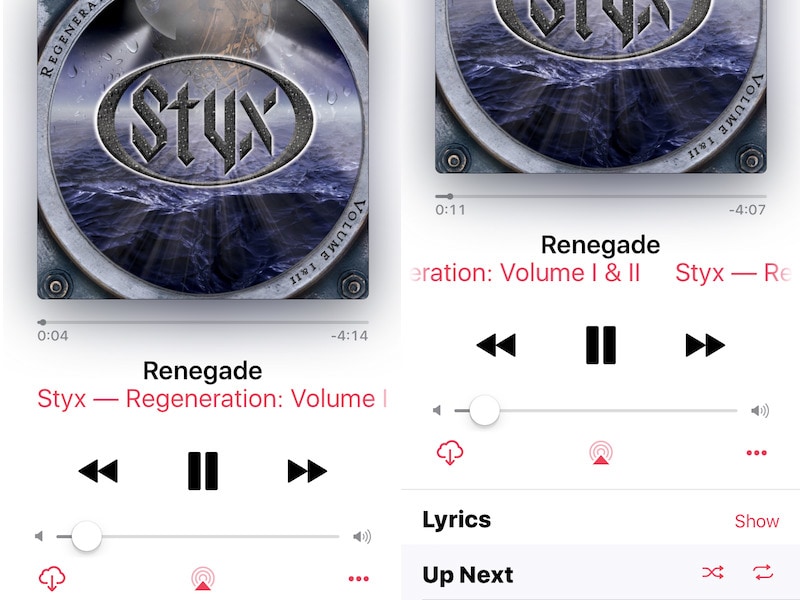
If you’re on iOS 10, you’ve probably been using the new Music app. The app got a revamp in iOS 10 on both the iPhone and the iPad and the design now is pretty good. You’d have noticed this particularly if you use Apple Music. Much as we love the new design, it has some flaws. The shuffle and repeat buttons are hidden and there are no cues in the UI to point to their location. If you’ve haven’t been able to find it, just follow these steps on your iPhone or iPad:

  1. Open the Music app.
  2. Play any song from an album or a playlist.
  3. Tap the Now Playing bar at the bottom of the screen. This has the name of the song currently playing along with a tiny thumbnail of album art.
  4. This should pull up the Now Playing window. Scroll up just a little until you see Up Next.
  5. To the right of Up Next you’ll see two buttons. The first one is shuffle and the second one is repeat. Tap the shuffle button to toggle shuffle on or off. It’s on if it has a pink background.
  6. You can tap the repeat button twice to play one song on loop.

That’s how you toggle shuffle and repeat opt on iOS 10’s Music app. Did you have trouble finding these buttons? Do you think the Music app should add some cues to show that shuffle and repeat are hidden? Let us know via the comments. For more tutorials, head to our How To section.

Tags: Apple Music, iOS 10
[“source-ndtv”]
TAGGED: and, App, are, in, iPhones, Music, Options, Repeat, Shuffle, where
sristy October 26, 2016
Previous Article iPhone 7 Launch in India, Google Pixel Phones, and More News This Week
Next Article Xiaomi Mi Note 2, Mi MIX Smartphones Aren’t Coming to India in the Near Future

Latest News

Perfect Occasions for Gifting Kosher Chocolate
Chocolate
Milk, Dark, or White Chocolate: What’s the Real Difference?
Chocolate
How to start your fitness journey
FITNESS
A smartphone is a handheld electronic device that merges the functions
SMARTPHONE
UK Food & Drink Expo 2026: How Brands Can Prepare for Post-Event Demand
FOOD & DRINK
Troubleshooting Chocolate Tempering: Tips to Get It Right Every Time
Chocolate
A Sweet Escape: Chocolate-Dipped Caramel Workshop in Hamilton
Chocolate
7 Delicious Chocolate Desserts Without Sugar or Dairy
Chocolate

Removed from reading list

Undo

Lost your password?